

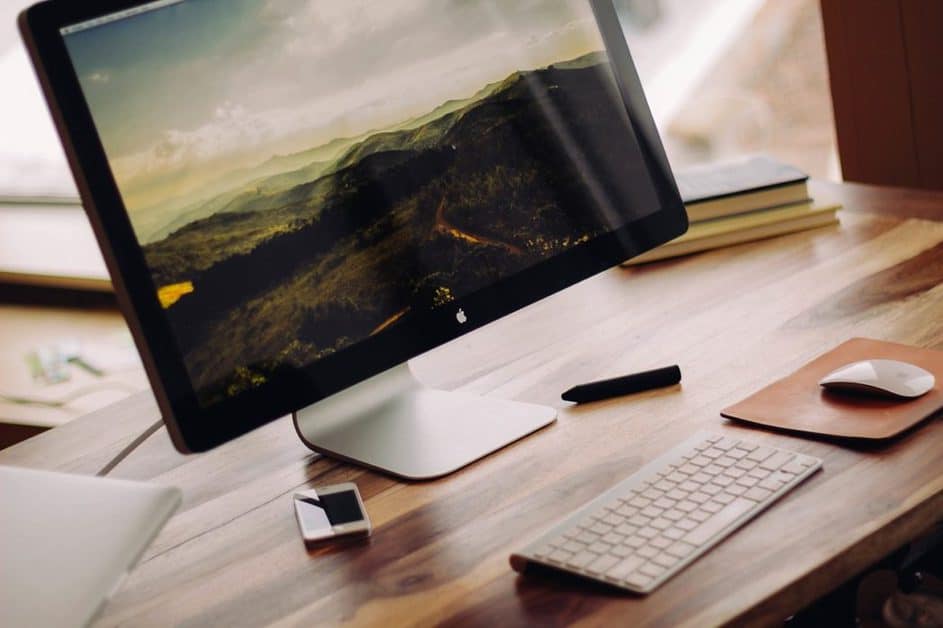

Apple has always set the standard for design, and one of the most recognizable features of each macOS release is its wallpaper. The macOS Monterey wallpapers are no exception. Inspired by California’s scenic coastline, these wallpapers capture Apple’s balance of simplicity, elegance, and immersive design.
Even though newer macOS versions like Ventura and Sonoma have been released, many users still prefer Monterey wallpapers for their aesthetic minimalism and timeless appeal. In this guide, we’ll explore everything you need to know—from the story behind Monterey’s default wallpaper to tips for downloading, customizing, and using them across devices.
The Story Behind macOS Monterey Wallpapers
Apple has a long-standing tradition of naming macOS versions after iconic California landmarks, from Yosemite to Big Sur. With Monterey, Apple paid homage to the stunning Monterey Bay coastline, known for its rugged cliffs and ocean views.
The default wallpaper showcases smooth gradients of ocean blues and vibrant pinks that shift based on time of day. This dynamic wallpaper mirrors the natural beauty of Monterey while staying consistent with Apple’s focus on clean, modern, and distraction-free design.
By blending abstract artistry with real-world inspiration, macOS Monterey wallpapers became one of Apple’s most versatile desktop backdrops.
Types of macOS Monterey Wallpapers
Apple released multiple versions of Monterey wallpapers to fit different preferences and device settings.
-
Dynamic Wallpaper
-
Shifts automatically based on time of day.
-
Morning: soft pinks and light blues.
-
Evening: darker tones and gradients.
-
-
Light Mode Wallpapers
-
Bright, airy colors designed for productivity during daytime use.
-
-
Dark Mode Wallpapers
-
Deeper shades for late-night work or low-light environments.
-
-
Still Wallpapers
-
Non-dynamic versions for users who prefer static backgrounds.
-
-
Abstract Variants
-
Alternative versions showcasing waves of color rather than landscape realism.
-
This variety ensures that macOS Monterey wallpapers cater to both casual users and professionals who want a sleek yet adaptable desktop aesthetic.
How to Download and Use macOS Monterey Wallpapers
Getting your hands on Monterey wallpapers is simple, whether you’re running macOS Monterey itself or another operating system.
1. Through macOS System Preferences
If you’re already using macOS Monterey:
-
Go to System Preferences > Desktop & Screen Saver.
-
Browse and select from available Monterey wallpapers.
-
Toggle between light, dark, or dynamic options.
2. Apple’s Official Website
Apple often publishes official wallpapers for press and developer resources. High-resolution Monterey wallpapers can still be found through Apple’s newsroom and developer portal.
3. Third-Party Repositories
Sites like 9to5Mac, WallpaperAccess, and Unsplash host curated collections of Monterey wallpapers. Many offer 5K and 6K resolution versions, making them suitable for ultrawide monitors.
4. Mobile Devices
Even if you’re not using a Mac, you can download Monterey wallpapers and set them as background images on iPhones, iPads, or even Windows PCs.
Customizing Your Desktop with Monterey Wallpapers
One of the best things about macOS wallpapers is their adaptability. Here are some tips to personalize your experience:
-
Match Wallpaper to Light/Dark Mode: Enable system-wide appearance settings to automatically sync wallpaper with your theme.
-
Use Widgets Creatively: Position widgets to complement the wallpaper’s gradients for a cleaner look.
-
Dual Monitor Setup: Monterey wallpapers scale beautifully across ultrawide and dual-screen setups. For the best effect, use still wallpapers to avoid awkward splits.
-
Dynamic Control: If you prefer specific color tones, disable dynamic wallpaper and lock it to your favorite time of day.
With these tweaks, macOS Monterey wallpapers can evolve from simple backgrounds to functional and aesthetic workspace enhancements.
macOS Monterey Wallpapers for Different Devices
Apple’s wallpapers are not limited to Macs. They are designed to look stunning across multiple devices.
1. Macs and MacBooks
-
Optimized for Retina displays.
-
Scales to ultrawide and 5K monitors.
2. iPhones and iPads
-
Monterey wallpapers are downloadable in vertical orientation.
-
Great for lock screens and home screens with focus mode themes.
3. External Displays
-
High-resolution variants ensure crisp visuals on external 4K and 5K displays.
-
Professionals often use Monterey wallpapers as neutral backdrops for presentations.
This versatility is why macOS Monterey wallpapers remain a top choice even in 2025.
Why macOS Monterey Wallpapers Are Still Relevant in 2025
Although Apple has since released Ventura and Sonoma, Monterey wallpapers continue to enjoy a cult following. Here’s why:
-
Timeless Design: The gradient-based, abstract landscape hasn’t aged.
-
High-Resolution Quality: Optimized for 5K displays and still stunning today.
-
Minimal Distraction: Perfect for productivity-focused workspaces.
-
Emotional Connection: Many users simply love Monterey’s calming, ocean-inspired palette.
For professionals, Monterey wallpapers strike the right balance between modern aesthetics and long-term usability.
Alternatives and Creative Tweaks
If you want to go beyond the defaults, here are some creative options:
-
Third-Party Monterey-Inspired Wallpapers
-
Designers release variations with different color palettes.
-
-
AI-Generated Wallpapers
-
Tools like MidJourney and DALL·E allow users to generate custom wallpapers inspired by Monterey’s gradients.
-
-
Custom Themes
-
Pair Monterey wallpapers with icon packs and dock customizations for a cohesive design.
-
These alternatives ensure that the macOS Monterey wallpaper experience remains fresh and personal.
Conclusion – Personalize Your Apple Experience with Monterey Wallpapers
Apple’s macOS Monterey wallpapers are more than just backgrounds—they are part of Apple’s storytelling tradition. They embody simplicity, elegance, and creativity, making them timeless even years after release.
Whether you’re looking to relive the magic of Monterey on your Mac, or you simply want a high-quality wallpaper for your iPhone, these wallpapers remain one of the best choices for digital personalization.
CTA: Download your favorite version today, customize your setup, and let the Monterey aesthetic inspire your work and creativity.
FAQs – macOS Monterey Wallpapers
1. Can I use macOS Monterey wallpapers on Windows or Android?
Yes, you can download high-resolution versions and set them as wallpapers on any device.
2. Are macOS Monterey wallpapers dynamic on all devices?
Dynamic functionality works only on macOS. On other devices, you’ll get static versions.
3. Where can I find the highest resolution Monterey wallpapers?
Third-party repositories and Apple developer resources often provide 5K and 6K versions.
4. Do Monterey wallpapers work with macOS Ventura or Sonoma?
Yes, you can import and use them just like any other image file.
5. What makes Monterey wallpapers different from Big Sur’s?
Big Sur introduced vibrant, playful gradients, while Monterey focused on smooth, ocean-inspired tones.
6. How do I enable automatic light/dark mode with Monterey wallpapers?
Go to System Preferences > General > Appearance and set it to “Auto.”
7. Can I create custom versions of Monterey wallpapers?
Yes, with AI or design tools, you can create Monterey-inspired variations to match your aesthetic.