

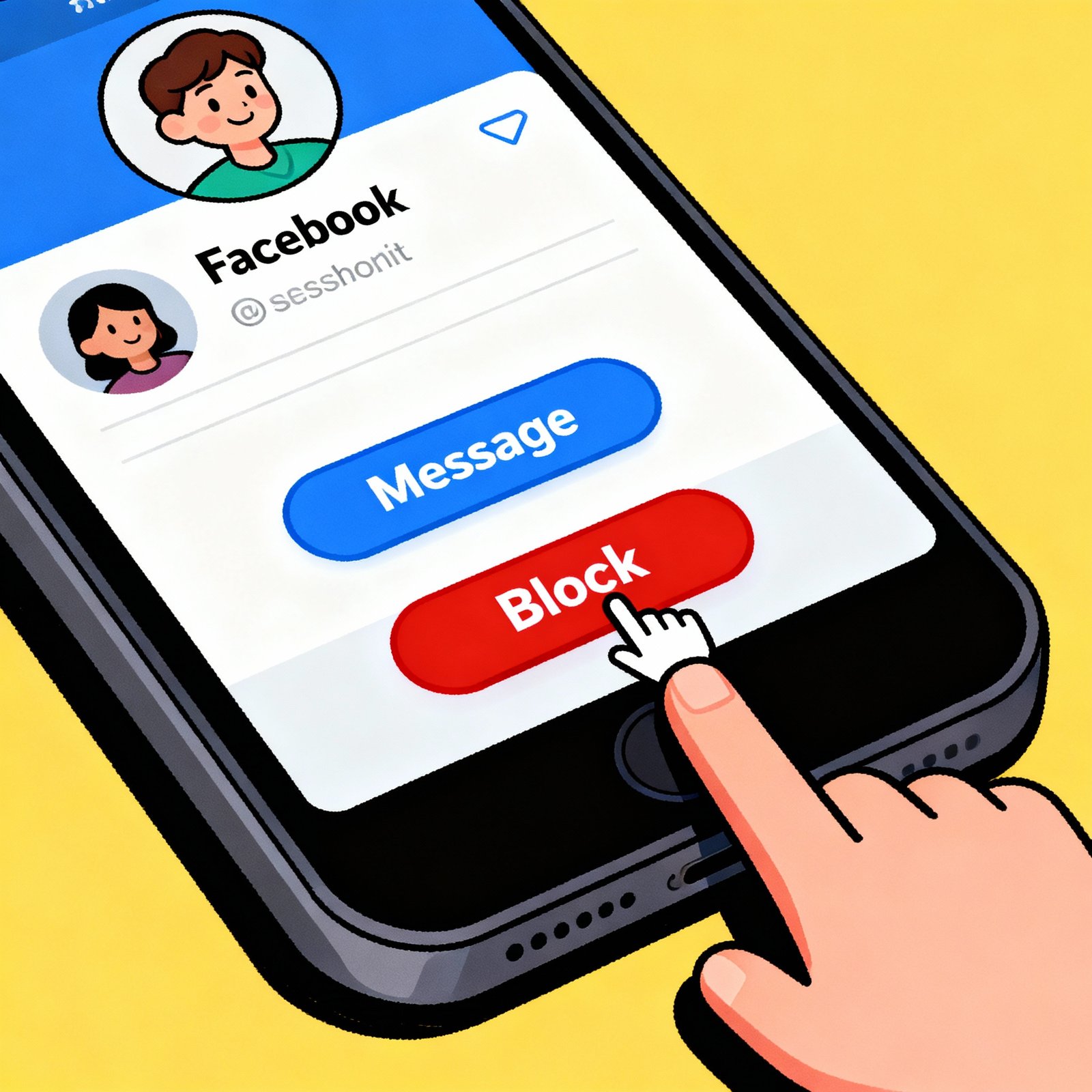
Have you ever come across a Facebook user who crosses the line—spamming your inbox, leaving inappropriate comments, or just making you uncomfortable? You’re not alone. With over 3 billion monthly users, Facebook remains a hub for social interaction—and, sometimes, unwanted attention.
Knowing how to block someone on Facebook isn’t just a social decision; it’s a digital security measure that empowers you to protect your privacy and mental space. In this comprehensive guide, we’ll break down exactly how to block people, manage privacy settings, and maintain control over your Facebook experience—step by step.
Why Blocking Someone on Facebook Matters
In an age of online connectivity, digital boundaries are essential. Blocking someone is not an act of hostility—it’s a protective feature that prevents certain individuals from:
-
Seeing your profile or posts
-
Tagging you in photos or comments
-
Messaging you via Messenger
-
Adding you as a friend
The Cybersecurity Perspective
For cybersecurity professionals and executives, blocking isn’t just about comfort—it’s about risk management. Cybercriminals often use fake profiles to gather information, impersonate users, or launch phishing attempts. By actively managing who has access to your digital footprint, you reduce potential attack vectors.
How to Block Someone on Facebook (Step-by-Step Guide)
Let’s break it down clearly.
1. Blocking Someone via Desktop Browser
-
Log in to your Facebook account.
-
Go to the profile of the person you wish to block.
-
Click the three dots (•••) on the right side of their profile.
-
Choose “Block” from the dropdown menu.
-
Confirm your action by clicking “Confirm” again.
✅ Result: They will no longer see your profile, send you messages, or tag you.
2. Blocking via Facebook Mobile App (Android/iOS)
-
Open the Facebook app on your phone.
-
Navigate to the user’s profile.
-
Tap the three dots (•••) beneath their name.
-
Select “Block” and confirm when prompted.
This method is fast and effective, especially for mobile-first users.
3. Blocking Through Facebook Settings
If you can’t access their profile directly (e.g., they’ve already restricted you), use this route:
-
Click your Profile Picture → Settings & Privacy → Settings.
-
In the left sidebar, choose Privacy → Blocking.
-
Under “Block users,” type the name or email of the person.
-
Click Block, then Confirm.
Pro Tip: You can view or unblock users later under this same “Blocking” section.
What Happens When You Block Someone
Blocking on Facebook is a two-way privacy shield. Here’s what happens:
| Action | Result |
|---|---|
| Profile visibility | They can’t find your profile or posts |
| Messaging | All chats disappear for both users |
| Tagging | They can’t tag you in posts, photos, or comments |
| Friend status | You’re automatically unfriended |
| Group/page interaction | You may still see each other in public groups |
Note: Blocking doesn’t notify the other person—it’s silent and private.
How to Unblock Someone on Facebook
Mistakes happen, or situations change. If you decide to reconnect:
-
Go to Settings → Privacy → Blocking.
-
Find the person’s name under the blocked list.
-
Click “Unblock” next to their name.
-
Confirm your decision.
⚠️ Reminder: Once unblocked, you’ll need to send a new friend request to reconnect.
Secondary Keyword Integration (with Optimization)
-
How to block someone on Facebook Messenger
-
How to unblock someone on Facebook
-
How to report someone on Facebook
-
Facebook privacy settings for blocking
These variations ensure search coverage across different intent queries.
How to Block Someone on Facebook Messenger Only
Sometimes, you might not want to block a person entirely—just prevent messages.
Here’s how to do it:
-
Open Messenger.
-
Tap the conversation with the person.
-
Tap their name at the top.
-
Select “Block” → choose “Block messages and calls”.
This limits chat access but doesn’t block them from viewing your Facebook profile.
Blocking vs. Unfriending: What’s the Difference?
| Feature | Unfriend | Block |
|---|---|---|
| Can view your posts | Maybe (if public) | No |
| Can message you | Yes | No |
| Can send friend requests | Yes | No |
| Gets notified | No | No |
| Removes previous messages | No | Yes (disappears) |
Blocking is the stronger privacy measure, designed for situations where interaction is unwelcome or unsafe.
Cybersecurity and Digital Hygiene: Why It’s Important
1. Prevent Social Engineering
Attackers use social cues and personal data from Facebook to manipulate victims. Blocking suspicious profiles cuts this channel off early.
2. Stop Identity Theft Attempts
Fake accounts may impersonate you or your friends. Regularly audit your friend list and block any suspicious duplicates.
3. Control Data Exposure
Limiting who sees your posts reduces the chance of leaked personal information that could be used in phishing or reconnaissance attacks.
Cybersecurity Takeaway: Treat your social media network as part of your digital attack surface—and manage it accordingly.
Advanced Tips for Managing Facebook Privacy
-
Review Your Privacy Settings Regularly:
Go to Settings → Privacy Checkup to adjust who can see your posts, friend list, and tagged photos. -
Enable Two-Factor Authentication (2FA):
Adds an extra security layer to prevent account hijacking. -
Limit App Permissions:
Third-party apps linked to Facebook can access your data. Revoke access to apps you don’t use. -
Avoid Public Wi-Fi Logins:
Always use trusted networks or a VPN when accessing Facebook. -
Report Suspicious Accounts:
If someone harasses or impersonates you, use the “Report” feature before blocking.
Psychological & Professional Benefits of Blocking
Blocking is not about avoiding conflict—it’s about maintaining mental wellness and focus.
For professionals, it’s also about reputation control and data discipline.
-
Reduces exposure to negativity and cyber harassment.
-
Maintains productivity by removing distractions.
-
Safeguards your online identity from manipulation.
“Digital peace is a component of digital security.” — Modern cybersecurity philosophy
How to Report Someone Before Blocking
Sometimes, blocking isn’t enough—especially if the person is harassing, impersonating, or threatening.
Steps to Report a Facebook Profile:
-
Go to the person’s profile.
-
Click the three dots (•••).
-
Select “Report”.
-
Follow the prompts (e.g., harassment, fake account, spam).
Facebook’s moderation team reviews reports confidentially.
Best Practices for Online Privacy Beyond Facebook
Even with robust blocking features, broader digital hygiene matters.
-
Use unique, strong passwords for each account.
-
Avoid oversharing on social media.
-
Monitor your digital footprint using tools like Google Alerts.
-
Educate team members (especially executives) on social media risks.
Combine privacy management with cybersecurity awareness to create a comprehensive digital defense.
FAQs – Facebook Blocking and Privacy
1. How do I block someone on Facebook without them knowing?
Blocking is entirely private. The person will not receive a notification; they’ll simply no longer see your profile or interact with you.
2. What happens when you block someone on Facebook?
They lose access to your profile, posts, and messages. All prior conversations vanish, and they can’t tag or contact you again.
3. Can a blocked person still see old messages?
No. Once blocked, chat history is hidden from both sides.
4. Can I block someone on Messenger but not Facebook?
Yes. You can block messages only—go to Messenger → Contact’s Profile → Block → Block messages and calls.
5. How do I unblock someone?
Go to Settings → Privacy → Blocking → Unblock. You’ll need to send a new friend request to reconnect.
6. Will blocking remove past comments or tags?
Existing tags or comments may remain on public posts, but the person can’t tag you again or interact further.
7. Can someone tell if I’ve blocked them?
While they won’t be notified, they might infer it if they can no longer find your profile or send you messages.
8. What’s safer—blocking or reporting?
For personal boundaries, block; for security or harassment, report and then block.
Final Thoughts
Understanding how to block someone on Facebook is a crucial digital life skill—one that blends personal boundaries with cybersecurity strategy. Whether you’re a cybersecurity specialist, executive, or casual user, maintaining control of your social presence protects not only your peace of mind but also your digital identity.
️ Take Action: Review your Facebook privacy settings today. Audit your friend list, block unwanted users, and enable two-factor authentication to fortify your digital space.