

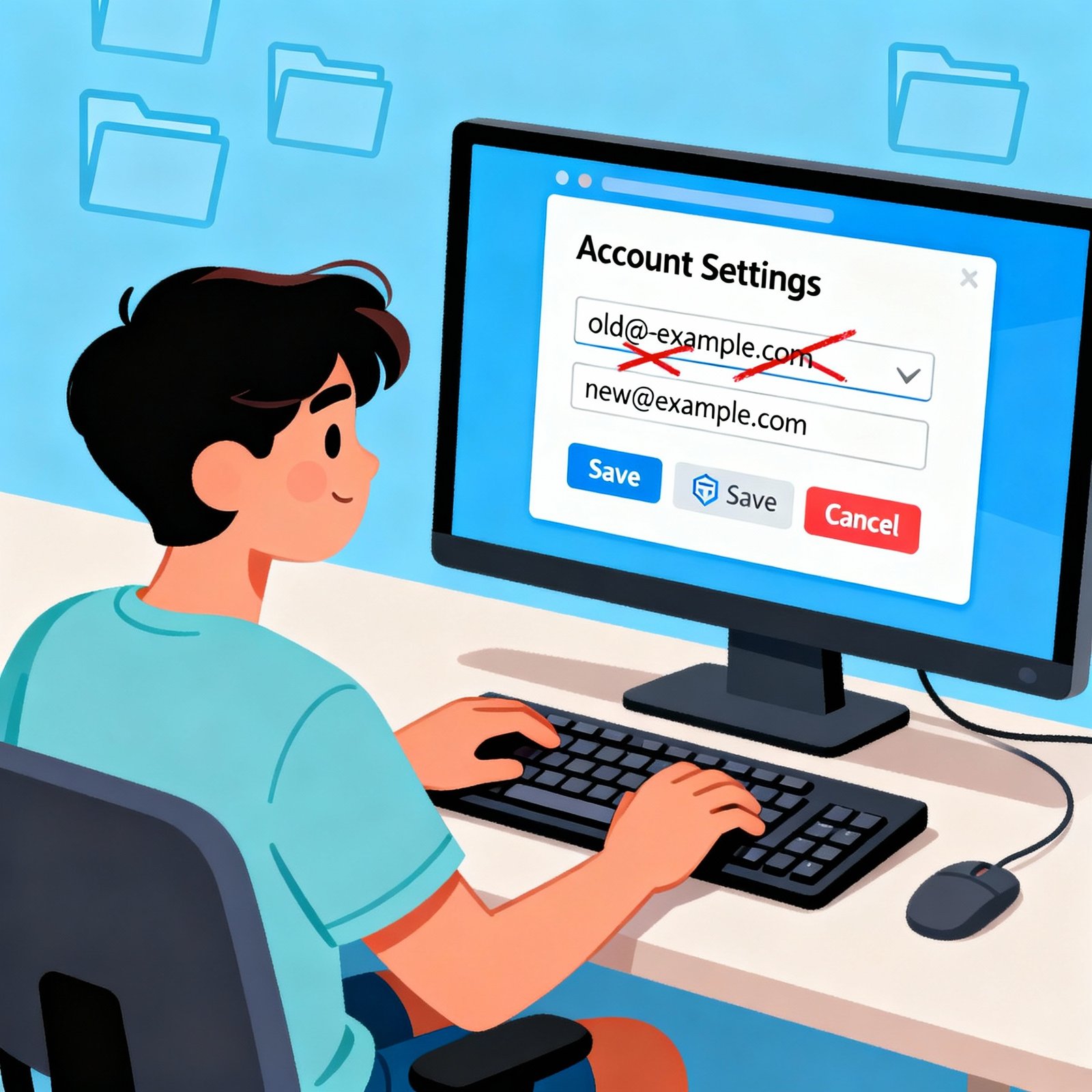
Changing your email address might sound simple — but when done carelessly, it can expose you to data loss, security breaches, and identity risks. Whether you’re switching jobs, rebranding your business, or enhancing privacy, understanding how to change your email address safely is crucial in today’s cyber landscape.
In this guide, we’ll walk through how to change your email on Gmail, Outlook, and major platforms, while keeping your personal data, recovery options, and security settings intact.
Why You Might Need to Change Your Email Address
Your email address is your digital identity — tied to logins, subscriptions, and sensitive data. There are several reasons to consider updating it:
-
Security concerns: You’ve been hacked or noticed phishing activity.
-
Rebranding: You want a professional or business domain (e.g., yourname@company.com).
-
Clutter and spam: Too many promotional emails or outdated accounts.
-
Migration: Moving to a new provider or consolidating accounts.
-
Privacy: You no longer want to use a personal email for work or public profiles.
⚙️ Step-by-Step: How Can You Change Your Email Address
Let’s go through practical steps for the most common platforms.
1. How to Change Your Email on Gmail
Gmail allows you to create a new email address or change the recovery and linked email.
Here’s how:
Option A: Create a New Gmail Account
-
Go to Gmail Sign Up.
-
Enter your new preferred username.
-
Set a strong password (use a password manager for safety).
-
Add recovery options — phone number and alternate email.
-
Verify your identity.
Option B: Update Email for an Existing Google Account
If you want to change your login email, it’s limited — but you can add an alternate address:
-
Visit Google Account > Personal Info.
-
Under “Contact info,” select Email.
-
Add or edit your alternate email.
-
Confirm via verification link.
-
Update your recovery email to enhance account security.
Tip: Always update your 2-Step Verification (2FA) and recovery settings immediately after changes.
2. How to Change Your Email Address on Outlook (Microsoft)
Outlook makes it easy to create aliases or replace your primary email.
To Add an Alias:
-
Log in to your Microsoft Account.
-
Go to Your Info > Account Info > Sign-in preferences.
-
Select Add email → Choose Create a new email address or Add existing one.
-
Verify and set the new alias as your primary email.
To Change Login Email:
-
Remove your old alias.
-
Set the new email as primary.
-
Update linked services (OneDrive, Teams, Xbox, etc.).
Pro Tip: Don’t delete your old address immediately. Keep it active for 30–60 days to avoid missed notifications.
3. Changing Your Email Address on Business or Social Accounts
Many online services require manual updates after changing your main email.
Common Platforms:
-
LinkedIn: Settings → Account Preferences → Email Addresses → Add new → Verify → Set as Primary.
-
Facebook: Settings → Accounts Center → Personal Details → Contact Info.
-
Amazon / PayPal / Netflix: Account Settings → Login & Security → Edit Email.
Don’t Forget:
-
Update your billing, subscriptions, and password recovery options.
-
Notify important contacts of your change.
-
Set up auto-forwarding from the old email for continuity.
Best Practices for Changing Your Email Address Safely
Changing an email isn’t just about convenience — it’s a cyber hygiene process.
Here’s how to do it securely.
✅ 1. Use a Strong, Unique Password
Avoid reusing old passwords. Combine uppercase letters, numbers, and symbols.
Use a password manager to store them securely.
✅ 2. Enable Multi-Factor Authentication (MFA)
This adds an extra layer of protection against unauthorized access.
✅ 3. Update Recovery Information
Make sure your recovery phone number and backup email are current.
It’s your lifeline in case of lockouts or attacks.
✅ 4. Avoid Public Wi-Fi During the Process
Always change your email address and passwords on a secured network.
✅ 5. Backup Your Data
Export important emails, contacts, and attachments before closing or migrating accounts.
✅ 6. Notify Your Contacts Safely
Send a professional update from your old email address to trusted contacts only.
Avoid broadcasting it publicly to prevent phishing attempts.
How to Change Your Recovery Email (and Why It Matters)
A recovery email is your backup for password resets and identity verification.
If your recovery address is outdated, you’re at risk of permanent account loss.
To Change Recovery Email (Example: Gmail)
-
Go to Google Account > Security.
-
Under “Ways we can verify it’s you,” click Recovery Email.
-
Add or update your address.
-
Verify via link.
Pro Tip: Use a different provider for recovery (e.g., Outlook recovery for Gmail). This ensures redundancy.
How to Change Your Email Address Without Losing Data
Migrating to a new address doesn’t mean losing your old messages or contacts.
For Gmail:
-
Use Google Takeout to export emails and contacts.
-
Enable Mail Forwarding in Settings → Forwarding and POP/IMAP.
-
Optionally, import old emails into your new account.
For Outlook:
-
Export data as a .PST file and import it to your new Outlook account.
-
Set up forwarding for 90 days.
For Business Accounts:
If you use a custom domain email (e.g., info@company.com), contact your domain or IT admin to migrate safely.
Common Mistakes to Avoid When Changing Email Address
Even professionals make errors during migration. Avoid these:
-
Deleting the old email too early.
-
Forgetting to update MFA apps (e.g., Authenticator or Duo).
-
Not backing up files or drive data.
-
Overlooking business tools like Slack, Zoom, or CRM integrations.
-
Using the same password for multiple accounts.
Always double-check settings and notifications for the first few weeks post-change.
⚡ Security Tips for Professionals and Businesses
If you’re an IT manager or CEO, changing your email address requires corporate-level caution:
-
Audit where your old email was used (vendors, platforms, admin dashboards).
-
Enforce company-wide password policies.
-
Use SSO (Single Sign-On) solutions to streamline future migrations.
-
Regularly monitor logs for suspicious login attempts.
-
Conduct a phishing awareness refresh among team members.
Cybersecurity Checklist Before Changing Your Email
| Step | Action | Why It Matters |
|---|---|---|
| 1 | Backup your inbox & contacts | Prevent data loss |
| 2 | Review linked accounts | Maintain access to platforms |
| 3 | Update recovery options | Enable secure recovery |
| 4 | Enable MFA | Add a second authentication layer |
| 5 | Inform trusted contacts | Prevent impersonation risks |
| 6 | Delete or deactivate old email (after 60 days) | Avoid misuse or phishing |
Expert Insight: Changing Email Address Without Risking Compromise
According to cybersecurity experts, over 40% of identity thefts begin with compromised email credentials.
When you change your email:
-
Use encrypted communication (TLS/SSL).
-
Avoid reusing passwords.
-
Never share verification codes via text or social media.
A safe transition ensures your digital footprint stays under your control.
❓ Frequently Asked Questions (FAQs)
1. How can you change your email address without creating a new account?
Some platforms allow adding an alternate email or alias (like Outlook or Yahoo). If not, you’ll need to create a new account and migrate data manually.
2. Can you change your Gmail address without losing data?
Yes. Use Google Takeout to export data, or enable email forwarding to your new Gmail.
3. How long should I keep my old email active?
At least 30–60 days. It helps you catch important messages and reset credentials across linked accounts.
4. How do I change my email address on social media accounts?
Go to your account settings → contact info → email. Add the new email, verify, and set it as primary.
5. Is it safe to share my new email publicly?
Only share it on secure, verified platforms. Avoid posting it on forums or websites to prevent spam or phishing.
6. Can hackers exploit my old email after I stop using it?
Yes — if the account remains unmonitored or unprotected. Always delete or deactivate unused accounts.
7. How often should professionals change their email?
Not frequently. Only when necessary — e.g., rebranding, breaches, or privacy shifts. Frequent changes can cause confusion.
8. How do I change my recovery email securely?
Go to account security settings of your email provider, replace the old recovery email, and verify the new one.
Final Thoughts: Transitioning Smoothly and Securely
Changing your email address is more than just a technical update — it’s an opportunity to enhance your digital security, declutter your communication, and reinforce your identity online.
By following secure practices — backups, MFA, recovery setup, and gradual migration — you ensure a seamless transition without compromising safety.
If you’re managing multiple business or personal accounts, consider consulting your IT or cybersecurity team to implement enterprise-grade protections.
Ready to safeguard your digital identity?
Start your email transition securely today — and ensure every account, login, and message stays protected.