

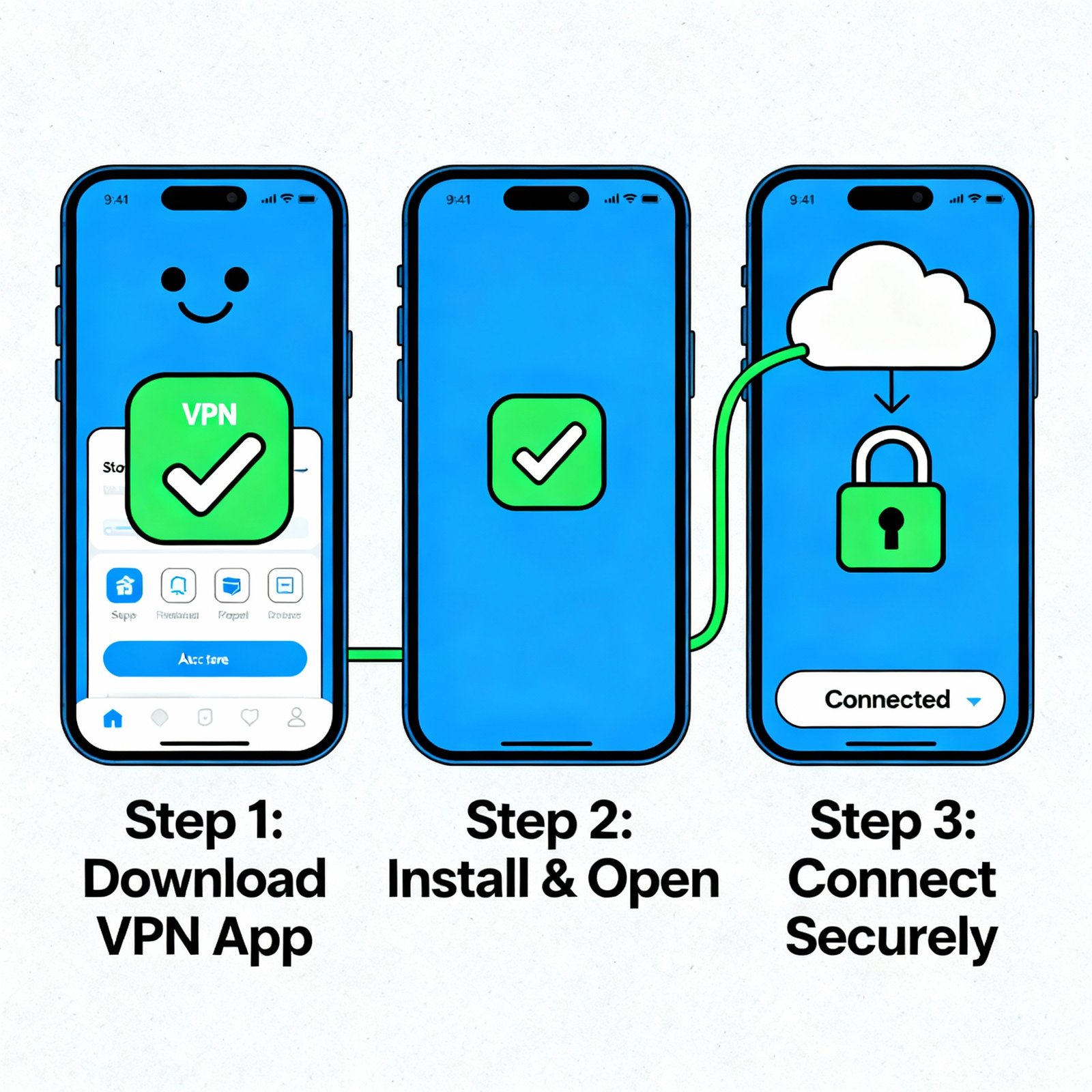
In an age where data privacy is currency, using a VPN (Virtual Private Network) is no longer optional—it’s essential. Whether you’re a cybersecurity professional, IT manager, or CEO, understanding how to set up a VPN correctly can make or break your organization’s online security posture.
According to a 2025 Statista report, over 31% of internet users worldwide rely on VPNs to safeguard their privacy. Yet, many still set them up incorrectly, exposing their data to unnecessary risks.
This guide will show you how to set up a VPN step-by-step, across different devices and platforms, while explaining the technical aspects in clear, actionable language.
What is a VPN and Why Do You Need One?
A VPN (Virtual Private Network) creates a secure, encrypted connection between your device and the internet. It hides your IP address, encrypts data transmissions, and allows you to browse safely—even on public Wi-Fi.
️ Key Benefits of Using a VPN
-
Data Encryption: Prevents cybercriminals from intercepting your data.
-
Online Anonymity: Masks your location and browsing history.
-
Geo-Restriction Bypass: Access region-locked content securely.
-
Remote Access: Enables secure company network access for remote employees.
-
Protection on Public Wi-Fi: Shields against rogue access points and sniffing attacks.
In short: A VPN acts as your digital armor—essential for both personal and enterprise-level security.
⚙️ How Can I Setup a VPN (Step-by-Step Guide)
Let’s break down the process by device type.
1. How to Setup a VPN on Windows (Manual & App Method)
Option 1: Using a VPN App (Recommended)
-
Choose a reputable VPN provider (e.g., NordVPN, ProtonVPN, ExpressVPN).
-
Download the Windows application from the official site.
-
Install and open the app.
-
Log in using your credentials.
-
Select a preferred server location.
-
Click “Connect.”
✅ Pro Tip: Enable Auto Connect on Startup to ensure you’re always protected.
Option 2: Manual Setup via Windows Settings
-
Go to Settings → Network & Internet → VPN → Add a VPN connection.
-
Under “VPN Provider,” choose Windows (built-in).
-
Enter connection details:
-
Server name/address (from your VPN provider)
-
VPN type (usually L2TP/IPsec or OpenVPN)
-
Login credentials
-
-
Click Save, then Connect.
Security Tip: Use IKEv2 or OpenVPN protocols for stronger encryption.
2. How to Setup a VPN on macOS
-
Go to System Settings → Network → VPN → Add VPN Configuration.
-
Select a VPN type (IKEv2, L2TP, or Cisco IPSec).
-
Enter:
-
Server Address
-
Remote ID
-
Authentication (Username, Password, or Certificate)
-
-
Click Create, then Connect.
Mac Users’ Tip: Use Tunnelblick or OpenVPN Connect for OpenVPN configurations.
3. How to Setup a VPN on Android
-
Open Settings → Network & Internet → VPN.
-
Tap Add VPN.
-
Enter:
-
VPN name
-
Server address
-
Type (PPTP, L2TP/IPsec, or OpenVPN)
-
-
Save the configuration and tap Connect.
Easier Option: Download the VPN app directly from the Google Play Store for automated configuration.
4. How to Setup a VPN on iPhone/iPad (iOS)
-
Go to Settings → General → VPN & Device Management → Add VPN Configuration.
-
Choose the VPN type (IKEv2, IPSec, or L2TP).
-
Enter:
-
Server address
-
Remote ID
-
Authentication (Username & Password)
-
-
Tap Done, then toggle VPN On.
iOS Security Tip: Use IKEv2 or OpenVPN protocol for faster, more stable connections.
Best VPN Protocols for Security & Performance
When learning how to set up a VPN, understanding protocols is crucial.
| Protocol | Security Level | Speed | Best For |
|---|---|---|---|
| OpenVPN | Very High | Moderate | General use, high security |
| WireGuard | High | Very Fast | Streaming, mobile VPNs |
| IKEv2/IPSec | High | Fast | Mobile & enterprise |
| L2TP/IPSec | Moderate | Medium | Legacy systems |
| PPTP | Low | Fast | Deprecated (avoid use) |
✅ Recommendation: Use OpenVPN or WireGuard whenever possible for modern encryption and reliable performance.
Advanced VPN Setup for Professionals
1. Configure Split Tunneling
Allows specific apps or traffic to bypass the VPN tunnel while others stay encrypted.
-
Useful for accessing local resources while connected to a corporate VPN.
2. Set Up Multi-Hop VPN
Routes traffic through multiple servers for layered anonymity.
-
Ideal for security researchers or high-privacy environments.
3. Deploy VPN on a Router
Secures every device connected to your Wi-Fi network.
-
Access router settings (e.g., 192.168.1.1).
-
Input VPN credentials under “WAN” or “VPN client.”
-
Save & reboot.
Works best with firmware like DD-WRT or AsusWRT-Merlin.
4. Use a VPN with a Firewall
Combine VPN encryption with next-gen firewalls for enterprise-level protection.
-
Restrict non-VPN traffic.
-
Enforce VPN-only policies to block unencrypted sessions.
Common VPN Setup Mistakes (and How to Avoid Them)
-
❌ Using Free VPNs: Often collect and sell user data.
-
❌ Incorrect Protocol Choice: Using PPTP instead of secure options like IKEv2.
-
❌ DNS Leaks: Failing to enable “DNS leak protection.”
-
❌ Ignoring Kill Switch: Without it, your IP is exposed if the VPN disconnects.
-
❌ Outdated VPN Client: Always update to the latest version for patched vulnerabilities.
Use online tools like ipleak.net or dnsleaktest.com to verify anonymity after setup.
Top VPN Providers (2025 Edition)
| Provider | Best For | Key Features |
|---|---|---|
| NordVPN | All-around use | Double VPN, Threat Protection, 6 devices |
| ProtonVPN | Privacy advocates | Swiss-based, open-source, Tor over VPN |
| ExpressVPN | Speed & simplicity | TrustedServer tech, Lightway protocol |
| Surfshark | Budget users | Unlimited devices, CleanWeb ad blocker |
| CyberGhost | Streaming | Optimized servers for Netflix, BBC iPlayer |
How to Test If Your VPN Setup Works
After you’ve learned how to set up a VPN, verify it’s working properly:
-
Visit https://whatismyipaddress.com/ before and after connecting.
-
IP should change location.
-
-
Run a DNS leak test to confirm DNS requests are secure.
-
Test WebRTC leak protection using browser extensions.
-
Check VPN connection logs for stability.
✅ Expected Outcome: Your IP should reflect the VPN server’s location, not your own.
VPN Setup for Businesses & Teams
Corporate VPNs differ from personal ones due to scalability and compliance needs.
Best Practices:
-
Use Zero-Trust VPNs with device authentication.
-
Integrate with Active Directory or SSO.
-
Enforce split tunneling policies to control traffic flow.
-
Log minimal user data (GDPR-compliant).
-
Regularly audit VPN usage and access logs.
Frequently Asked Questions (FAQs)
1. How can I setup a VPN for free?
You can use free VPNs like ProtonVPN (limited servers) or Windscribe, but avoid free services that log data or inject ads.
2. Do I need technical skills to setup a VPN?
Not necessarily. Most modern VPN apps provide one-click setup. Manual setup may require basic networking knowledge.
3. What’s the safest VPN protocol to use?
OpenVPN and WireGuard are currently the most secure and widely supported protocols.
4. Can I setup a VPN on my router?
Yes. Installing VPN configuration on your router protects every connected device automatically.
5. Why is my VPN connection slow?
Slow speeds can result from distant servers, overloaded connections, or using older protocols like L2TP. Switch to WireGuard for better performance.
6. How can I check if my VPN is working?
Run an IP leak or DNS leak test online. If your real IP or location appears, reconfigure or switch providers.
7. Is it legal to use a VPN?
Yes, VPNs are legal in most countries except those with strict internet censorship like China or Iran. Always comply with local laws.
8. Can I use the same VPN on multiple devices?
Yes, most premium VPNs allow 5–10 simultaneous connections under one account.
Final Thoughts: Take Control of Your Online Privacy
Learning how to setup a VPN is one of the simplest yet most effective steps to safeguard your digital life. Whether it’s protecting sensitive corporate data or maintaining personal anonymity, VPNs are indispensable tools in modern cybersecurity.
For professionals and executives alike, investing time in a proper VPN configuration today ensures secure, unrestricted, and private internet access tomorrow.
Take action now: Choose a trusted VPN provider, set it up following this guide, and reclaim your online freedom.